Separate the different parts of your life.
A workspace is your broadest space: Personal, Home or Work. Each has its own projects and library. Keep personal plans separate from work, or start with just one space for your everyday ideas.
 Thread
For your life, your work, and the ideas in between. Keep a journal, plan a trip, explore a hobby or organize a project. Bring related thoughts together and follow them somewhere new.
Submitted to the App Store · Free at launchMake room for meaningful moments.
The beginning of something good.
Keep related thoughts together.
Explore a workspace, gather related ideas in stacks, follow a connection, and open a note.
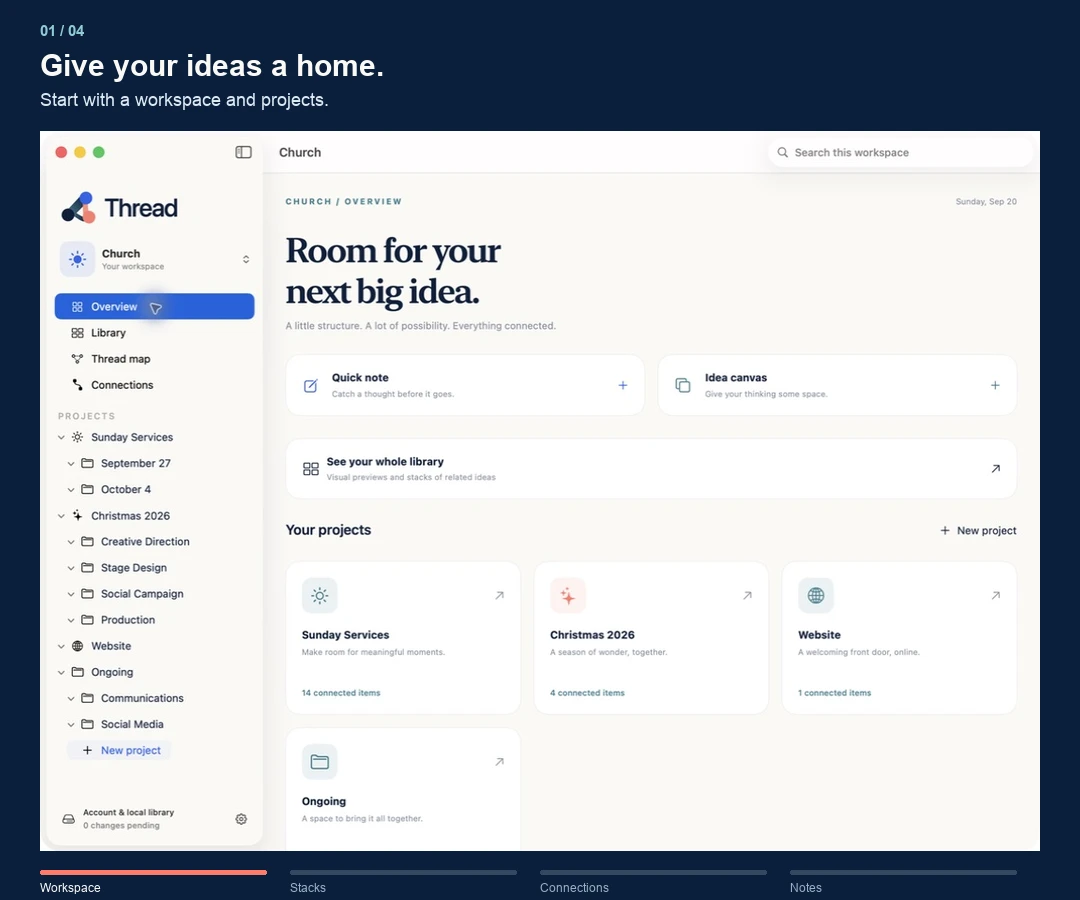
Thread brings writing, visual thinking and planning into one place. A journal entry, a room makeover, a reading list or a client brief can all have a home here. Gather related pieces into stacks and draw threads between the ideas that belong together.
A workspace is your broadest space: Personal, Home or Work. Each has its own projects and library. Keep personal plans separate from work, or start with just one space for your everyday ideas.
A project holds the notes and plans for a trip, home improvement, class, client or event. Add subprojects when you need more structure—a vacation can have places to stay, things to do and packing plans.
Inside a project, write a page, arrange a canvas, create tasks, attach files or capture meeting notes. Each item can connect to other work in the same workspace.
A subject stack gathers related items from different projects within a workspace. An “App development” stack could hold notes, a creative canvas and a task—even when those items live in different projects.
An item can appear in several stacks. You’re opening the same original each time, so there’s no extra copy to keep up to date. Project stacks also gather your project content automatically.
A thread links specific items: a note to a stack, a task to a page, or one project to another. Give the relationship a label such as “Inspired by” or “Next step.” An idea doesn’t have to become a whole project to connect to something else.
In the Thread map, arrange the cards, zoom out to see relationships, or focus on one item’s immediate connections. Open a card to return to the original work.
“A place to belong”develops this themeSunday teaching
The note stays in its project. The stack gathers related work. The thread makes the relationship visible.Use paragraphs, headings, lists, quotes, checklists and code blocks. Reorder blocks as your thinking changes, read formatted notes, and share your writing as Markdown.
Move sticky notes and text around an open visual surface. Add frames and labeled connectors, then place references to existing pages, tasks and files. Open a reference to work on its original.
Create tasks with a status, priority and optional due date. Keep them beside the notes and files that explain the work, and see upcoming tasks on your overview.
Record a meeting and follow a live transcript on supported devices and languages. Supported devices can update summary notes during the conversation and create a full summary when it ends. Keep your own notes alongside it, then add the meeting to a stack or connect it to a project.
AI summaries require Apple Intelligence and a supported system. When unavailable, Thread shows transcript excerpts. Keep the app open while recording.
Import common exports from Notion, Notability, Figma and other apps, including text, Markdown, PDFs and images. Review suggested destinations before importing. Uncertain matches go into a Needs organizing stack for you to sort.
Suggestions use on-device text matching. Original files are preserved; complex layouts, databases and Figma layers aren’t recreated.
Draw handwritten pages with Apple Pencil or your finger on iPad and iPhone; view their saved previews on Mac. Attach files and save links to outside tools so the references you need stay with the project.
Start without an account and save your work locally, including while offline. Sign in for optional private cloud sync across your devices while Thread is open and connected. Export a library backup, restore deleted items from Trash, and review conflicting edits when needed.
Use Thread for your personal life, your work, or both. You don’t need a business or a big project to begin.
Keep journal pages, reading notes, hobby ideas and learning goals in a Personal workspace. Gather a subject you keep coming back to in a stack, and connect a new thought to an earlier entry.
Collect places to visit, attach bookings and make packing tasks for a trip. Or plan a room makeover with inspiration on a canvas, measurements in a note and a checklist of things to do.
Create a project for an event, collect message notes and visual ideas, record planning meetings, and track preparation tasks. Use a theme stack to bring related material together across several weeks.
Give a client project its own space for briefs, references, concepts and next steps. Explore directions on a canvas and link a meeting note to the concept it inspired.
Organize classes or research projects, attach reading material, and write your own notes. Gather a recurring subject in a stack and label the connections between sources and ideas.
Use a project as the home for work you’re doing. Use a stack to collect items about a shared subject, even across projects. Use a thread to show a specific relationship between two items. You can use all three without duplicating the note.
A canvas is a place to brainstorm: arrange text, stickies, frames and references in a visual layout. The Thread map shows the relationships between your actual notes, stacks, projects and other items. One helps you develop an idea; the other helps you follow where it connects.
You control your projects, stacks and connections. During import, Thread suggests placements using the text it can read and the structure you already have. You can change those suggestions before importing. Ambiguous items go to Needs organizing. Workspace-wide AI memory is still planned.
You can save external links and import supported exported files today. Direct account connections to services such as Notion, Figma and Google Drive are not enabled for launch. Cloud sync keeps your own devices in step; shared team workspaces and live collaborative editing are not part of this release.
Find answers, get in touch, or learn how your data is handled.